
Image to Excel. Paste a screenshot, get a workbook.
Turn a screenshot, photo, or scan of a table into an editable Excel workbook - just paste it. Free, no signup.
Free tool limits: up to 3 pages per document, plus a daily run cap
Sign up to continue without the free-tool capsThree pictures, three workbooks
A crisp dashboard screenshot, a tilted phone photo, a banking app - run each one above and check the rows.
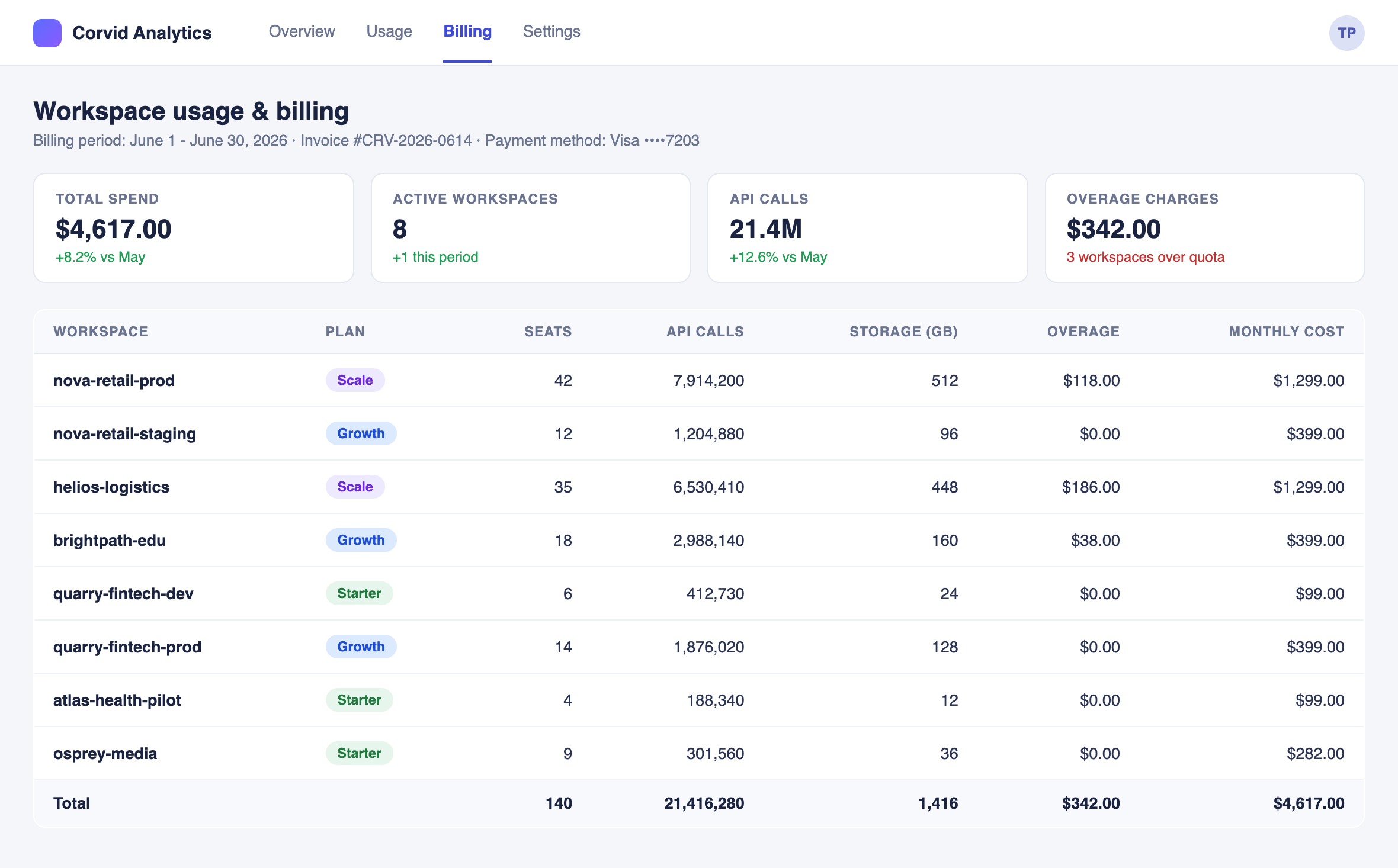
saas-usage-billing.png
Crisp SaaS billing screenshot - summary cards and an 8-workspace usage table
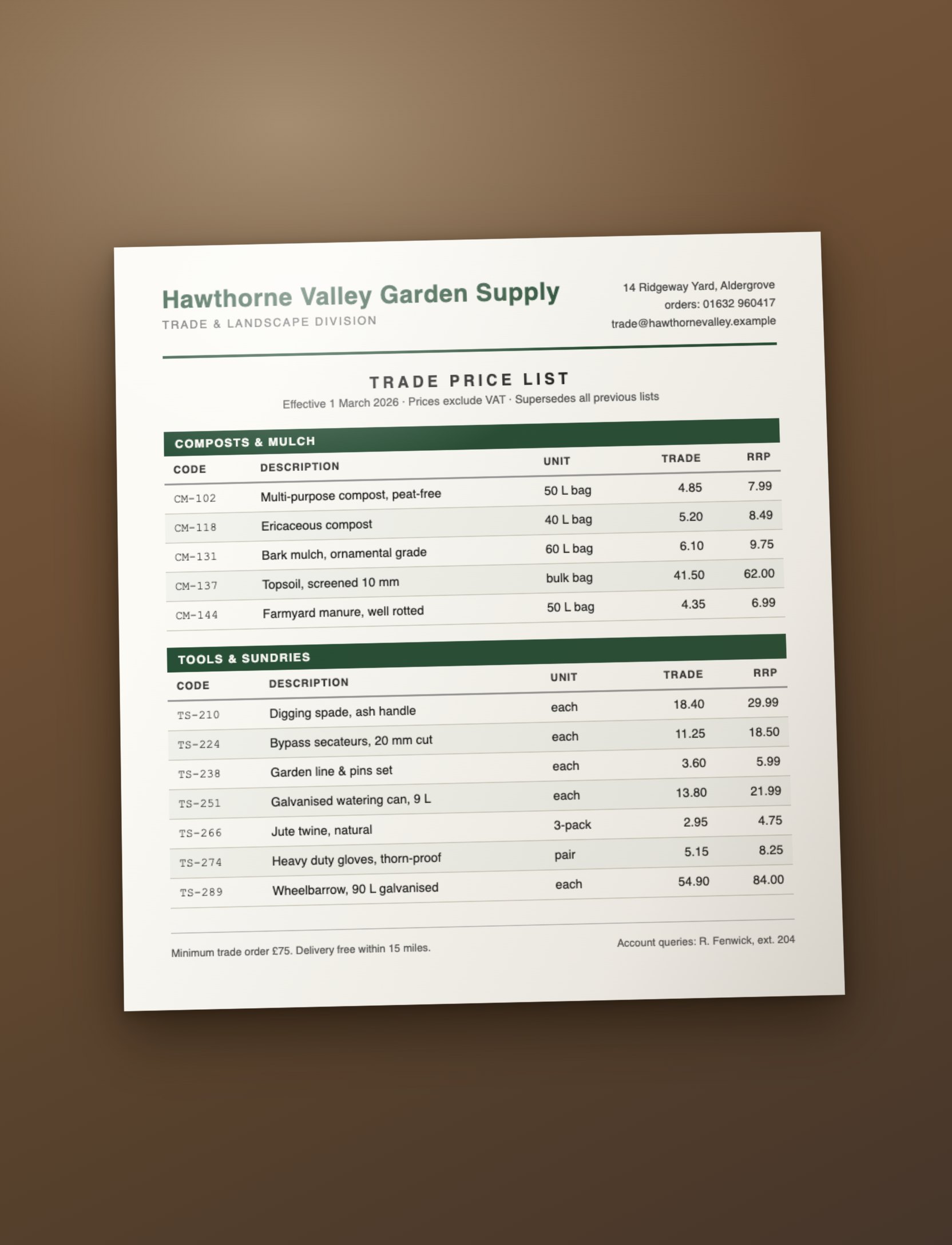
price-list-photo.jpg
Phone photo of a printed trade price list - tilted, unevenly lit
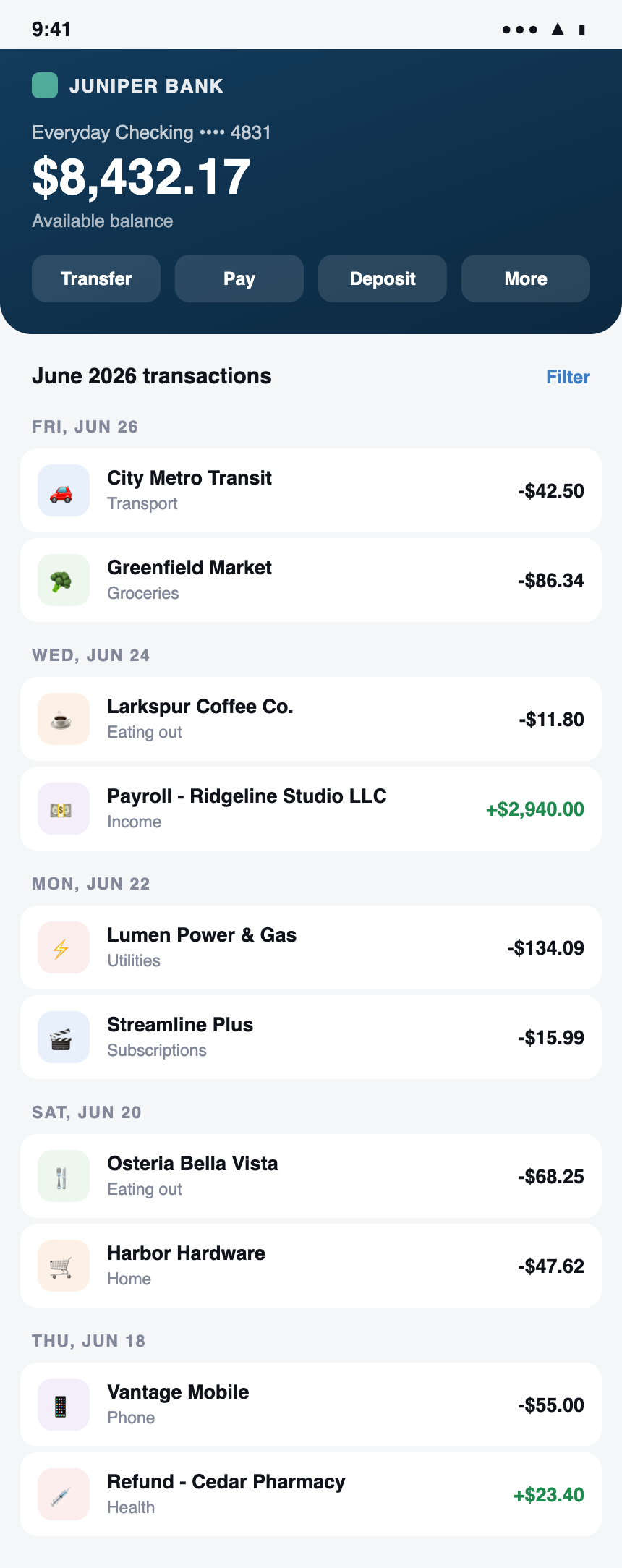
bank-app-transactions.png
Mobile banking app screenshot - balance plus a month of transactions
Fictional samples, free to reuse: Dashboard screenshot · Photo of a price list · Banking app screenshot
Screenshot, photo, or scan - JPG, PNG, WEBP, TIFF, HEIC
Screenshots
Dashboards, admin panels, webinar slides, viewers that will not export. If you can see the table, you can paste it.
Phone photos
Printed price lists, packing slips, posted schedules. Photograph and convert - a slight angle or shadow is fine.
Scans
Single-page scans and faxes saved as JPG, PNG, or TIFF read the same way - no PDF conversion detour.
A picture of a table becomes a real spreadsheet
The extraction reads the table structure itself: every table becomes its own sheet, header details become a summary sheet, and amounts arrive as numbers a formula can use.
Every table
its own sheet
Header fields
summary sheet
Numbers
typed as numbers
Tilted photos
auto-corrected
01
Paste or drop the image
Ctrl+V a screenshot straight from the clipboard, or drop a PNG, JPG, WEBP, TIFF, or HEIC file. Extraction starts on its own.
02
AI reads the picture
OCR built for photos corrects rotation and skew, then every table and header field is mapped to rows and columns.
03
Preview and download
Check every sheet on the page, then download the .xlsx. Numbers arrive as numbers, so formulas work immediately.
From the blog
The data is right there, in a picture
A tilted phone photo becomes 24 typed rows, with screenshots.
Read the postImage to Excel questions
Yes - that is the fastest way to use this tool. Take a screenshot, then press Ctrl+V (Cmd+V on a Mac) anywhere on this page. Extraction starts the moment the image lands, no file dialog involved.
PNG, JPG, WEBP, and TIFF, plus HEIC photos from iPhones - HEIC files are converted to JPG in your browser before anything is uploaded. Pasted screenshots work no matter what tool captured them.
Yes. The OCR layer corrects rotation and skew before extraction, so a price list photographed slightly crooked still comes out as straight rows and columns. Keep the whole table in frame and avoid heavy glare for best results.
Each table becomes its own sheet in the workbook. Anything outside the tables - titles, dates, account names, totals - is collected into a main sheet of field and value pairs.
Printed text is the strong case. Clear handwriting - block capitals, a neatly written list - usually reads well; messy cursive is best effort. The preview shows exactly what was read before you download anything.
Mechanical OCR turns a picture into loose text and leaves the table structure to you. This tool reads the layout - which value belongs to which row and column - and rebuilds it as spreadsheet cells, with numbers typed as numbers.
Your image is sent over an encrypted connection to DocuPipe, the document platform this tool runs on, and processed on infrastructure that is ISO 27001 certified and HIPAA compliant. Files are encrypted at rest, never used to train AI models, and nobody browses them - processing is automated end to end.
Use the free PDF to Excel converter at www.docupipe.ai/tools/pdf-to-excel - same engine, built for multi-page documents, with a page picker for long files.
Run it at scale
The report you screenshot every week can extract itself.
DocuPipe ingests recurring documents automatically - images, PDFs, email attachments - and returns clean data in a schema you control.
No credit card required. Signup credits included.
ISO 27001 certified · HIPAA compliant · Encrypted in transit and at rest · Never used to train models