
Form Data Extraction: When Structured Documents Are Surprisingly Hard

DocuPipe Team
Updated Mar 25th, 2026 · 8 min read
Table of Contents
Form Data Extraction: When Structured Documents Are Surprisingly Hard
Forms have defined fields. Extraction should be trivial. It's not. Here's why checkboxes, handwriting, and version variations break most tools.
Form data extraction is the automated process of identifying and capturing field values from structured forms, including typed text, handwritten entries, checkboxes, signatures, and other form elements, and converting them into usable data. Unlike free-form documents, forms have defined fields. While this is the case, extracting them reliably requires AI that can understand form structure.
A tax preparer processes thousands of W-2s and 1099s each season. An insurance company handles millions of claim forms annually. A healthcare system processes patient intake forms every single day. Although these forms are designed to be structured, that doesn't make extraction easy. With the variety of different versions, handwritten fields, and checkboxes that are filled in with everything from neat checkmarks to messy scribbles, forms are a surprisingly complicated task for extraction tools. If you're curious more broadly and want to learn more about extraction technology, see our guide to document extraction - we're focusing on forms here.
What You Need to Know
Form types: Tax forms (W-2, 1099, 1040), insurance forms (ACORD, claims), applications (loans, accounts), government forms, medical intake. Documents with consistent fields filled out by inconsistent people.
The challenges: Checkboxes filled inconsistently, handwritten fields, form version variations, poor scan quality, and fields that span multiple boxes.
What extraction captures: Field labels and values, checkbox states, signatures and dates, table data within forms, and relationships between fields.
Why confidence scores matter: A form with 50 fields might have 47 extracted with high confidence and 3 that are uncertain. With confidence scores, you can focus on those 3 instead of all 50.
Table of Contents
- Why Form Extraction Is Different
- What Gets Extracted from Forms
- How Form Extraction Works
- Common Form Types and Extraction Challenges
- Form Extraction Accuracy
- What to Look for in Form Extraction Solutions
- FAQ
- Key Takeaways
Why Form Extraction Is Different
Forms seem like the easiest extraction target. Fields are labeled. Positions are defined. But real-world form extraction is surprisingly difficult.
Checkbox Chaos
A checkbox on a form can be filled with:
- A neat checkmark
- An X
- A filled-in square
- A circle
- A scribble that sort of covers the box
- Nothing (but was meant to be checked)
Extraction must reliably determine checkbox state despite inconsistent human input.
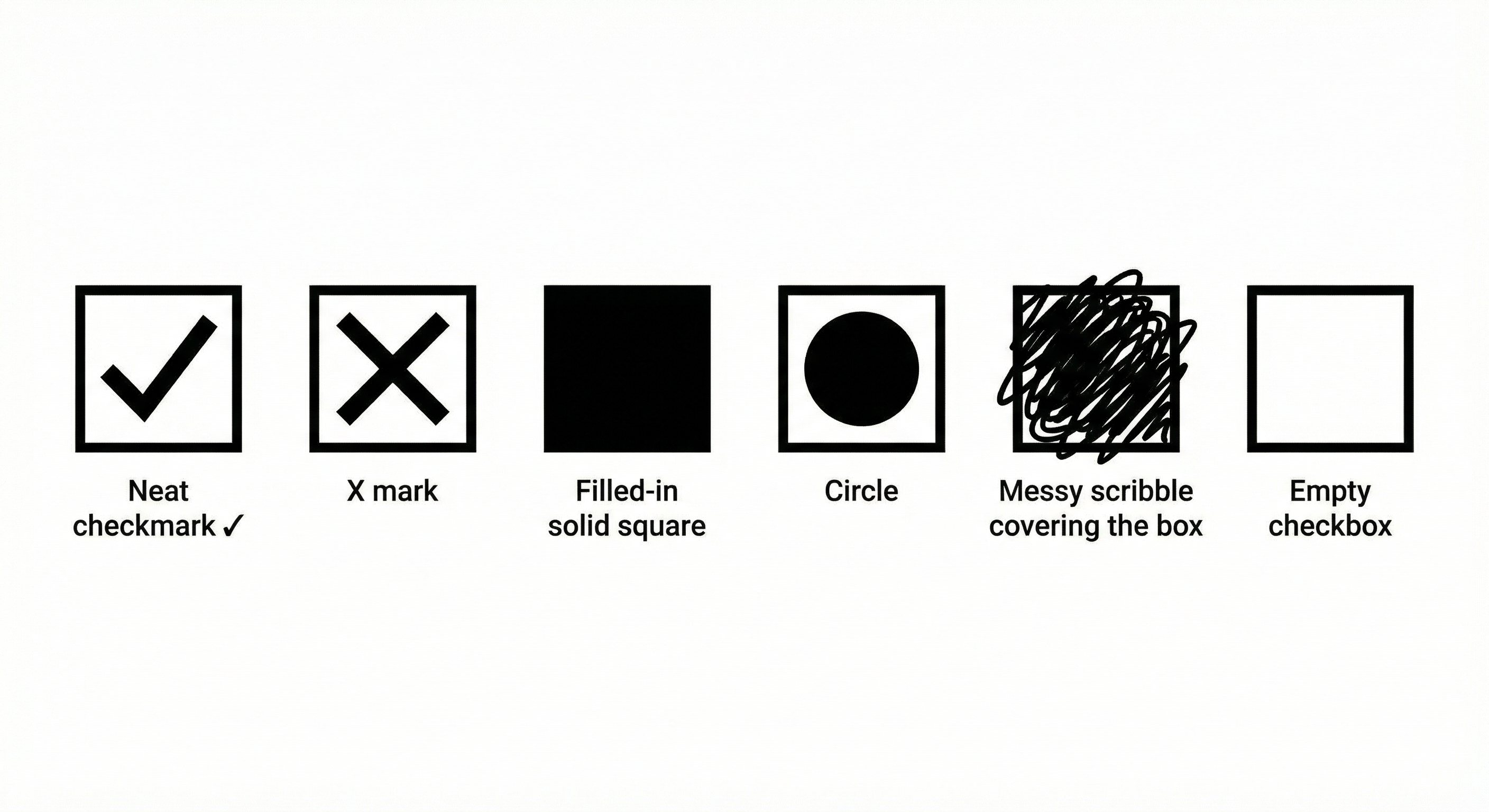 Different checkbox fill styles
Handwriting Variability
Many forms include handwritten fields: names, addresses, dates, amounts. Handwriting recognition (ICR) is less accurate than printed text recognition, and accuracy varies based on legibility.
Form Version Proliferation
The IRS updates tax forms annually. Insurance forms have multiple versions in circulation. Application forms get revised. A system processing forms at scale encounters dozens of versions of the "same" form.
Field Spanning and Overflow
Social Security numbers span 9 boxes. Addresses overflow their space. Names get crammed or abbreviated. Extraction must handle data that doesn't fit neatly in its designated field.
Signatures and Dates
Signatures verify form completion but aren't "extracted" traditionally. Extraction detects signature presence and captures associated dates.
What Gets Extracted from Forms
Text Fields
- Printed text (typed or pre-filled)
- Handwritten text (names, addresses, etc.)
- Numerical values (amounts, SSNs, dates)
Selection Fields
- Checkboxes (checked/unchecked state)
- Radio buttons (which option selected)
- Multiple choice (selected options)
Structured Data
- Tables within forms (line items, schedules)
- Multi-part fields (SSN in 3 boxes, phone with area code)
- Calculated fields (totals, derived values)
Verification Elements
- Signatures (presence detection)
- Dates (signing dates, effective dates)
- Stamps and seals (notary, official marks)
How Form Extraction Works
Step 1: Document Ingestion
Forms arrive from multiple channels:
- Scanned Paper
- Uploaded PDFs
- Mobile Photos
- Faxes
- Email Attachments
The extraction system normalizes everything into a consistent format for processing, applying preprocessing like deskewing and contrast enhancement to improve processing accuracy.
Step 2: Form Classification
The system identifies which form type it's processing. A W-2 requires different extraction than an ACORD 125. Classification routes the document to the appropriate extraction schema.
Some systems use form ID numbers or barcodes. More advanced systems identify forms by visual structure, handling forms even when ID fields are missing or damaged.
Step 3: Field Extraction
With form type identified, the system locates and extracts each field:
- Text fields: OCR for printed text, ICR for handwriting
- Checkboxes: Visual detection of marks
- Tables: Row/column parsing
- Multi-part fields: Combining values across boxes (SSN, phone numbers)
Each field gets a confidence score. Handwritten fields typically have lower confidence than printed fields. Unclear checkboxes get flagged for further review.
Step 4: Validation
Business rules validate the extracted data:
- Are required fields present?
- Do values match expected formats (SSN, date, ZIP)?
- Do calculated fields match their inputs?
- Are checkbox selections internally consistent?
Step 5: Output and Integration
Structured data outputs with field names matching the form schema. Confidence scores from the extraction accompany each value, enabling targeted review of low-confidence extractions. Data flows to downstream systems via API, pre-built connectors, or export formats like JSON and CSV.
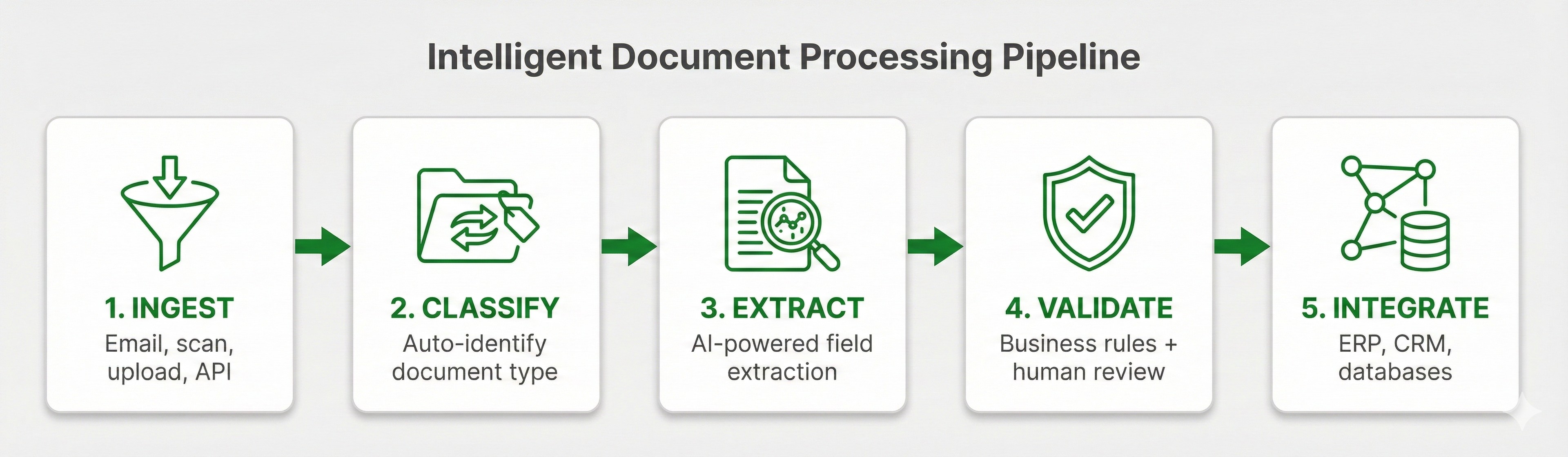 Form extraction pipeline: Ingestion, Classification, Field Extraction, Validation, and Output
Common Form Types and Extraction Challenges
Tax Forms (W-2, 1099, 1040)
Fields: Employer info, employee info, wages, withholdings, control numbers.
Challenges: Multiple versions each year, handwritten corrections, multi-part forms (Copy A, B, C), employer-modified formats, etc.
Confidence score value: A W-2 with 25 fields might have 23 high-confidence extractions and 2 low-confidence (perhaps a smudged employer ID). Because of confidence scores, you only have to review 2 fields instead of combing through all 25 for potential errors.
Insurance Forms (ACORD)
Fields: Policy info, insured details, coverage types, limits, deductibles.
Challenges: Hundreds of ACORD form types, checkbox-heavy layouts, handwritten agent notes, and attachments referencing main forms.
Loan Applications
Fields: Applicant info, employment history, income, assets, liabilities.
Challenges: Handwritten financial details, multi-page forms, supporting documentation references, and varying lender formats.
Healthcare Forms
Fields: Patient demographics, insurance info, medical history, consent signatures.
Challenges: Handwritten physician notes, checkbox symptom lists, signature verification, and HIPAA compliance requirements.
Government Forms
Fields: Varies by form type (immigration, permits, licenses, registrations).
Challenges: Official stamps, handwritten sections, multi-language forms, and strict formatting requirements.
Form Extraction Accuracy
Accuracy varies significantly by field type.
| Field Type | Typical Accuracy | Notes |
|---|---|---|
| Printed text | 97-99% | Highest accuracy |
| Pre-filled form data | 98-99% | Machine-generated text |
| Neat handwriting | 90-96% | Legibility dependent |
| Messy handwriting | 75-90% | Wide variability |
| Checkboxes (clear marks) | 95-98% | When marked clearly |
| Checkboxes (ambiguous) | 80-92% | Partial marks, corrections |
| Signatures (detection) | 95-99% | Presence, not content |
| Multi-box fields | 93-97% | SSN, phone numbers |
Confidence scores transform these numbers. A form with 92% overall accuracy on handwritten fields still has confidence scores that identify exactly which fields are uncertain. You should only have to review the uncertain 8%, not everything.
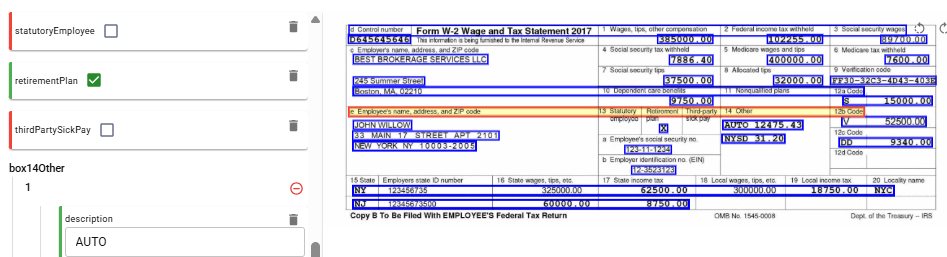 W-2 form with extracted fields and confidence indicators
What to Look for in Form Extraction Solutions
Field-Level Confidence Scores
The essential capability. You need confidence for each field, not just the form overall. This enables efficient review of just the uncertain fields.
Checkbox Detection Quality
Test specifically with checkboxes filled inconsistently. Demo forms have neat checkmarks. Production forms have scribbles, X marks, and ambiguous partial fills.
Handwriting Recognition (ICR)
If your forms include handwritten fields, ICR quality matters. Ask about accuracy on handwriting and how low-confidence handwritten fields are flagged.
Bounding Box Visualization
Click any extracted value and see exactly where it came from. This auditability is essential for compliance and for resolving disputes about extracted values.
Form Version Handling
How does the system handle different versions of the same form? Annual tax form updates? Revised application forms? Look for automatic version detection and graceful handling of variations.
Custom Form Configuration
For your organization-specific forms, how easily can you configure extraction? Can you define custom schemas and field locations?
FAQ
Form data extraction captures field values from structured forms, including text fields, checkboxes, handwriting, and tables, converting them to machine-readable data for processing.
Yes. Intelligent character recognition (ICR) extracts handwritten text. Accuracy is lower than printed text and varies with handwriting legibility. Confidence scores flag uncertain handwritten fields for review.
Computer vision detects marks in checkbox regions. Clear checkmarks achieve high accuracy. Ambiguous marks (partial fills, corrections) get lower confidence scores for review.
Printed fields achieve 97-99% accuracy. Handwritten fields range from 75-96% depending on legibility. Field-level confidence scores identify exactly which fields need review.
Yes. Good solutions detect form versions automatically and apply appropriate extraction rules. This is important for tax forms that change annually.
Common forms like W-2, 1099, ACORD insurance forms, and standard applications often have pre-built support. Custom forms can be configured.
Each extracted field gets a confidence score. High-confidence fields can be trusted. Low-confidence fields get flagged for human review. This lets you review 5 uncertain fields instead of 50 total fields.
Yes. Extraction detects signature presence and captures associated dates. It verifies that signatures exist, though it doesn't authenticate them.
Key Takeaways
- Form extraction handles the structured chaos of real-world forms: inconsistent checkboxes, variable handwriting, and multiple form versions.
- Field-level confidence scores are essential. Review uncertain fields, not entire forms.
- Checkbox detection matters more than you'd think. Test with messy, real-world marks, not neat demo checkmarks.
- Handwriting recognition varies widely. Expect lower accuracy on handwritten fields and plan for review workflows.
- Bounding box visualization provides auditability. See exactly where every extracted value came from.
Forms are designed to be structured, but extracting them reliably requires AI that handles the messiness of how people actually fill them out. We designed DocuPipe to handle that messiness so you don't have to.
Recommended Articles

Related Documents